Manual
Thursday, August 28th, 2008Here you find the latest version of the EduWear manual: eduwear_manual_v3
Here you find the latest version of the EduWear manual: eduwear_manual_v3
![]()
On
The block switches on the pin you choose in the list
![]()
OnFor
The block switches on the port you choose for a certain time.
You need to add a variable on the to say for how long i.e. 1000 for 1 second
Afterwards the pin will be switched of for the same amount of time. Note: a LED would blink.
That is example how to use onFor:

![]()
Off
The block switches the pin you choose off. NOTE: on and off might be different from what you expect as they also depend on your circuit.
![]()
If
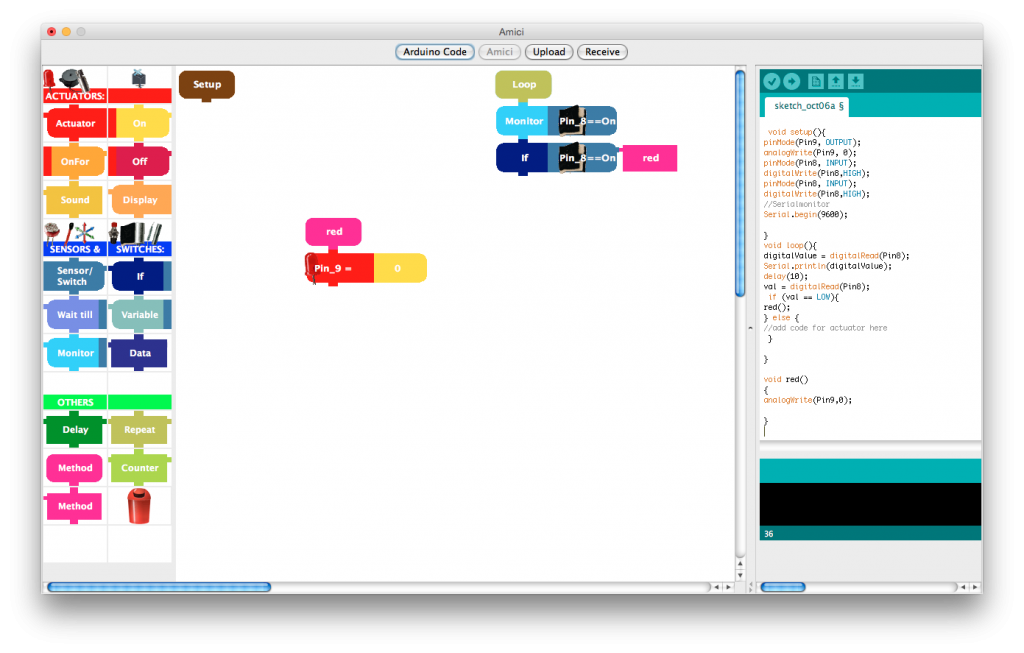
The block can be used for everything you want to do after reading a value from a switch/sensor.
Choose where you connected the switch/sensor and choose the treshold. You can try out what values
you get by using the Monitor block before. Drag for example an On Block right to the if block to switch on an LED after pressing a button.
Note: if you do not add a second if statement below with the opposite values the LED will be on forever
Here is an example how to use the if block: First ask i.e. if the sensor value on pin 3 is more then 500 then drag an on block to right. Then ask in another if block if the sensor value on pin 3 is less then 500 and drag on off block next to it. Now you can go on with your programm under the second if block

![]()
Wait till
Can be used instead of “if”. Waits till a certain event (i.e. Switch is pressed happens).
![]()
Sound
If you connect a beeper to port 9,10 or 11 you can play melodies with this block
![]()
Monitor
Can be used to show data of a sensor or switch back on your computer. It is very usefull to find out what kind of values you get. NOTE: to see the values you must click on the “Serial Monitor” after uploading your program.
Delay
Pauses the program for the duration of a variable you have to add.The duration is in Microseconds so use 1000 if you want to stop for a second.
The manual is based on the Arduino booklet and is released under the Creative Commons license Attribution-NonCommercial-ShareAlike 2.5. It will be available for download as pdf but now I will just post single parts.
Go to http://www.dimeb.de/eduwear category Software Development.
Download the latest Software version for your Operating System and in your language.

Right-click on the archive you downloaded. Use an archive program e.g. WinZip or Winrar to extract the file. Make sure to extract it to a folder.

Plug-in the board with the USB cable
On Windows
Plug the board into the computer and, when the New Device Found window comes up; specify the location for the install wizard to look for the drivers (Point the driver to the folder you created /drivers). This will happen twice because the first time the computer installs the low level driver 17 then a piece of code that makes the board look like a serial port.
Change into the win folder and double-click on run.bat.

Macintosh:
Look for the “Drivers” folder inside the folder and double-click on the file called FTDIUSBSerialDriver_v2_0_1.dmg. When this has opened, install the software contained in the FTDIUSBSerialDriver.pkg. At the end of this process you’ll have to restart your machine to make sure the drivers apre properly loaded.
After the installation is successful you will also need to run the command called “macosx_setup.command”.
Follow the instructions provided by the program and type the password that you use to login into your computer when asked. After this program has run successfully you need to turn off your computer. Don’t just reboot or logout, really turn it off and back on again.
When this phase is over you can plug the board into the computer.
Open Terminal change to the unzipped folder and type in sh run.sh.
The way we connect at the moment is not very beautiful but we did not find a better prototyping connection yet.
We use color-code cable soldered on connectors. Either you use a board with all the cables put in or (in case it looks to technical/chaotic) you put in some connector (you can just break the connections). Less then 3 pins get unstable. When you do it yourself you have to check that the green ones go into the digital, the orange ones in analog, the black ones in GND and the red one in AREF and 5V (!). Otherwise the “color-code” does not work.

To connect to the yarn you can use luster terminals as I show on the video here.
To run the Software on your Windows machine you start by downloading it on the Eduwear Blog in the Software Development category.
Download the Video (it is an Avi file)
Afterward you have to extract the zipped Archive.
Download the Video (it is an Avi file)
Change into the win folder and double-click on run.but
Download the Video (it is an Avi file)
The software starts up and you are ready to program.
Drag the blocks under the “
Download the Video (it is an Avi file)
To transfer the program to the board change to the code view by clicking the code button. Compile the program and choose the right serial port. Click the button on the board and afterwards the button “upload” in the software.
Download the Video (it is a Flash movie)
Congratulations. You uploaded your first program when it says “Done uploading” in the software.

To introduce (very basic) circuitery to children this one page of most common symbols might help. Example circuits will follow.
This is taken from the Trobleshooting section of the official Arduino guide
* Be sure that you are resetting the board a couple of seconds
before uploading.
* However, on some computers, you may need to press the reset
button on the board after you hit the upload button in the Arduino
environment. Try different intervals of time between the two, up to 10
seconds or more.
* Disconnect digital pins 0 and 1 while uploading (they can
connected and used after the code has been uploaded).
* If you get this error: [VP 1] Device is not responding
correctly. try uploading again (i.e. reset the board and press the
download button a second time).
* Check that you’re not running any programs that scan all serial
ports, like PDA sync applications, Bluetooth-USB drivers (e.g.
BlueSoleil), virtual daemon tools, etc.
* Make sure you don’t have firewall software that blocks access to
the serial port (e.g. ZoneAlarm).
* If you have a really ancient Arduino board, you may need to
change the baud rate at which sketches are uploaded to 9600 (from the
normal 19200). You will have to change the speed in the preferences
file directly. See the preferences page for instructions on finding
the file. Look for the file in your computer and change the
serial.download_rate property to match the one in your board. If you
have such a board, it’s recommended that you burn the latest
bootloader (which works at 19200 baud). This can be done with the
‘Tools | Burn Bootloader menu item.
By Arduino
1. Connect a 9V Battery (it should be full enough at least 7 V) to the
power board with a grey cable.
2. Connect the power board with the programmer board where it say
“Pow” on the board with a grey cable
3. Connect the other cable from the programmer board to the main board
(with the Atmega8) with a grey cable
5. Connect the programmer board with a serial cable to your pc
5. Make sure the LED blinks when you hit reset